Editing the stratigraphic model
The Edit Model form (prepare > Stratigraphy > Edit Model) and the Stratigraphic View are used in combination to manually interact with the zones and hierarchy in the stratigraphic model. If you have created zones using the Generate Zones form you can use this step to adjust the zones and hierarchy as you see fit.
If you have chosen to manually create the zones and hierarchy you will find the bulk of the functionality needed to do so in the Stratigraphic View. The Edit Model form is used mainly as a display of data on the zones in the selected level, while the Stratigraphic View is a fully interactive, graphical representation of the hierarchy through which you can create and modify the model.
The Edit Model form
The Edit Model form presents the information related to the zones at their various hierarchical levels for the model selected in the Model drop-down list. The display of information on this form is controlled by your interaction with the Stratigraphic View. To display data on the form you first need to click on a level in the Stratigraphic View. This displays all of the level's constituent zones and related information on the form.
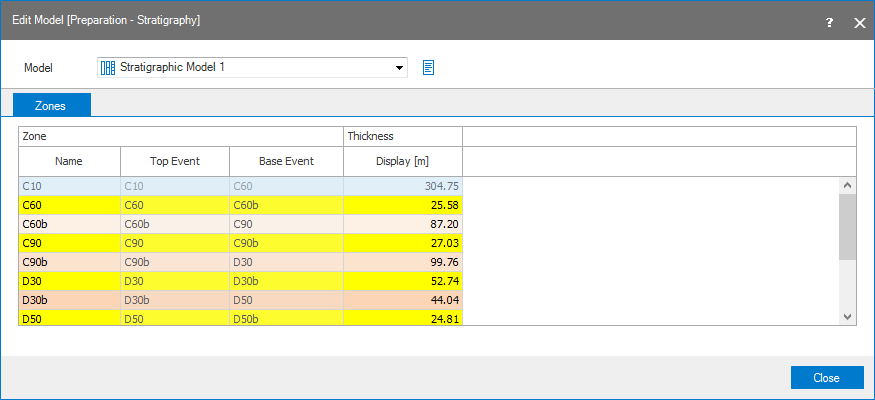
To populate the Edit Model form, first click on a level in your Stratigraphic View. click to enlarge
Working with Edit Model form
The Model drop-down list controls the stratigraphic model displayed in the Stratigraphic View and the data that can be displayed on the form. Adjacent to the Model drop-down box is a factsheet icon (  ) that, when hovered over, identifies on which basis the stratigraphic model was originally generated. If a surface set, marker set or seismic interpretation was used, the name will be displayed in the factsheet.
The Zones tab contains a table that displays information for all of the zones at a particular stratigraphic level when that level is clicked in the Stratigraphic View; until a level or zone is clicked in the Stratigraphic View, no information will be displayed in the table. The bounding events for each zone, the zone name and display thickness are shown in the table. Only the zone name and display thickness can be edited.
Zone
Name Lists the names of the zones present in the stratigraphic model that you can edit. Note that zone names need to be unique per stratigraphic level.
Top/Base Event The constraining surfaces or markers for the zone.
Display You can specify the display thickness here to ensure a good display of your stratigraphic model in the stratigraphic view. Note that editing the thickness here will only influence the display thickness, not the real thickness of the zone in the model. By default, the value is initially set to the average thickness of the zone in the model.
The Stratigraphic View
In the Stratigraphic View you can perform a number of actions on the hierarchy, including the assignment of events to the zones and basic actions such as creating and removing zones. All of the actions are performed through the right-click context menu for the zone or level. See Stratigraphic View for details on working with the hierarchy.